Document guide
How to send a scanned document by email (and make it small enough)
To send a scanned document by email when the file is too large, compress its page images toward a size limit such as 1 MB or 200 KB. LensUp does that in your browser; pages are rasterized, so selectable text is not kept — usually fine for a scan you only need to read.
Steps
- Open Compress PDF
Open Compress a PDF and choose your scanned PDF or page photos.
- Pick a size limit
In Export options choose No limit, 200 KB, 500 KB, or 1 MB. For many portals under 2 MB, aim at 1 MB.
- Choose an effect
Default Grayscale keeps files lighter. Use Color only when color matters.
- Set output to PDF
Auto may export a single page as JPG. Choose PDF when you need a PDF attachment.
- Export and check
LensUp shows the real size. If the target is missed, you get the smallest result. Zoom fine print before sending.
Why scanned PDFs bounce from email
A text PDF can be tiny; a phone scan is a stack of photos. Five color pages at high resolution easily pass several megabytes. Mail servers and upload fields then reject the attachment.
According to Gmail Help, personal accounts have a 25 MB attachment limit; Google Workspace admins can set other limits. Portals often allow far less — 2 MB, 1 MB, or 200 KB — so compress to the stricter number.
Do not chain-compress the same file over and over — each pass can soften more detail. Start from the best original and compress once to the target.
If a strict cap blocks the email, compress first, then attach. The same steps work before a portal upload.
Ways to make a scan smaller
Lower resolution, stronger JPEG compression, grayscale instead of color, and dropping blank pages help most. For receipts and forms, gray is usually enough.
You are not aiming for “lossless.” You want “under the limit and still readable” — names, amounts, and stamps clear when zoomed.
Colored stamps and signatures suffer first at aggressive targets. Prefer grayscale with a slightly higher limit over forcing color under 200 KB.
Aiming at 1 MB, 500 KB, or 200 KB
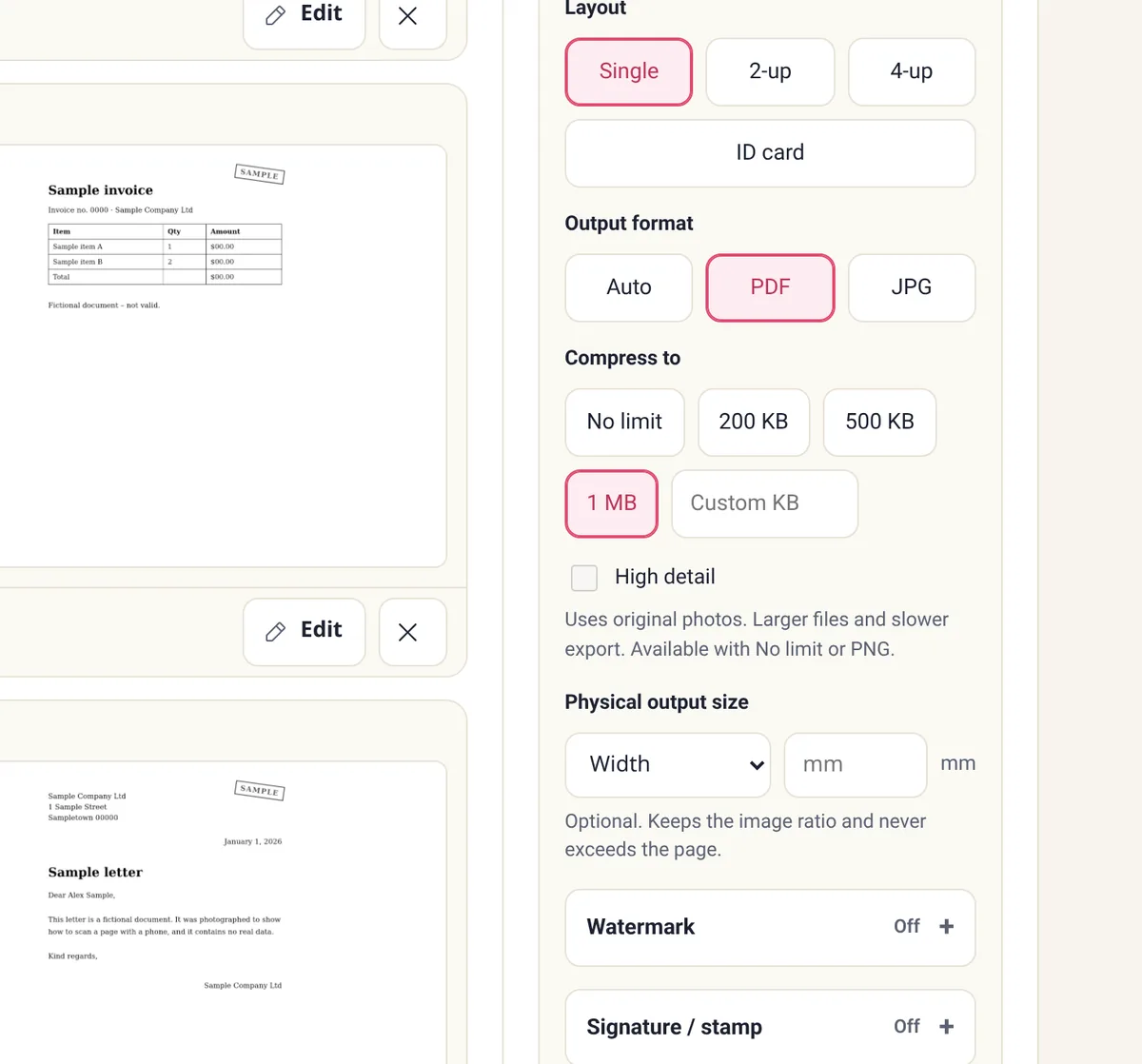
Pick the chip that matches the form. LensUp tries to stay under it while keeping quality. If it cannot, it returns the smallest file it made and shows that size.
Then switch to grayscale, remove extra pages, or reshoot a dark page before compressing again.
If mail accepts the file but a portal rejects it, the portal’s cap is the one that matters. Keep a portal-sized copy beside the full-quality scan.
What LensUp compression changes
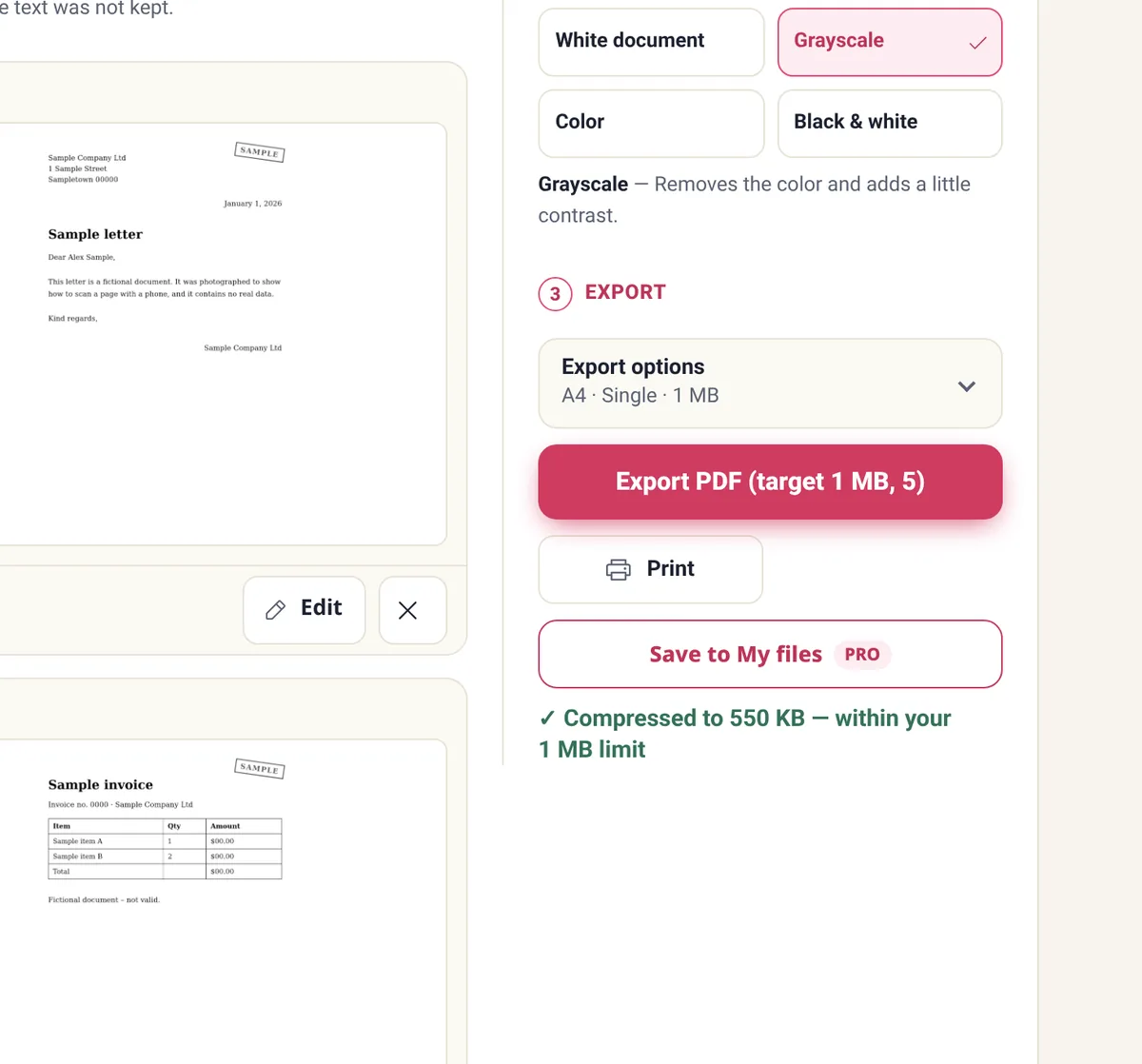
Each page is imported as an image and recompressed. Selectable text, links, and form fields do not survive. For a scan that is already an image, that trade-off is normal. If you need copyable text, use a text-preserving PDF optimizer instead.
Work stays in the browser with no upload. For one-page jobs, set output to PDF so you do not attach a lone JPG by mistake.
Scan clean, then send
Straighten skewed pages and even lighting before you compress — the same limit looks sharper. Use the scanner and remove shadow tools first when the source is a phone photo.
Name the file clearly, attach it, and keep the heavier original until the recipient confirms. If Gmail converts a huge attachment to a Drive link, that is expected above its limit — portals that ban links still need a smaller PDF.
Frequently asked questions
How do I make a scanned document small enough to email?
Open LensUp Compress PDF, pick a limit such as 1 MB, export, and attach the result. Free, no sign-up, on-device.
What size should I aim for?
Use the portal’s number. Under a 2 MB cap, 1 MB is a practical target. Stricter forms may need 500 KB or 200 KB.
Can I compress without starting from a degraded file?
Large reductions recompress images and drop detail. Prioritize legibility under the limit.
Why can’t I select text afterward?
Pages are rasterized. That matches most scan submissions; keep a text PDF if you need copy-paste.
Is the file uploaded?
No. Compression runs in your browser.
Attachment too heavy? Pick a size limit and export a lighter PDF.
Compress PDF