Print an ID card front and back in one page
This browser can’t open PDFs — it’s too old to run the PDF engine. Use the latest Chrome, Edge, Firefox or Safari, or a newer phone or computer.
Add
On a computer, drag images or PDFs here, or paste a screenshot (Ctrl / ⌘ + V).
Adjust
EffectWhitens the paper background; dark print stays dark.
Removes the color and adds a little contrast.
Keeps the original colors, with no tone change.
Pushes ink to black and paper to white; some gray can remain.
Evens out shadows and uneven light; keeps colored ink and stamps.
Fades blue, red and green ink; cannot reliably remove black handwriting.
Warm gray paper, fine grain and a slight tilt; colored ink turns gray.
Export
Export optionsA4 · ID card · No limit
ID card: places the first two pages as front & back at ID-1 size on one A4 sheet. In the ID card tool, corners are proposed automatically when card edges are clear. Use Edit to check all four corners and adjust them by hand if needed.
PNG is lossless, so target sizes do not apply.
Uses original photos. Larger files and slower export. Available with No limit or PNG.
Optional. Keeps the image ratio and never exceeds the page.
Photograph the front and back of an ID card and LensUp places both onto one A4 sheet — the common “copy both sides on one page” errand, ready to print or send as a PDF. That is also how to print an ID card front and back in one page: export the PDF and print it on A4 — both sides come out at real card size once each is cut to the card’s edges: a flat scan as it is, a photo with its detected corners checked and adjusted if needed (turn an upright shot first). LensUp only arranges photos of your own real card on the sheet: it does not create blank ID templates and does not forge documents.
How to use
- Photograph the front, then the back of the card.
- Choose the “ID card” layout, then check any detected corners and adjust them by hand if needed — turn an upright card the right way up first.
- Export, or print at 100% scale — both sides land on one A4 page.
Measured: does the copy come out at actual size?
On 12 October 2026 we opened photos and flat scans of a specimen ID card in our ID card copy tool, downloaded the A4 PDF and measured both cards on it. The standard ID card size (ID-1) is 85.60 × 53.98 mm. “Actual size” means each card on the PDF is within 0.5 mm of it and, checked by eye, shown whole.
| What we added | Cards on the PDF, mm | Actual size? |
|---|---|---|
| Scans cut to the card2 steps in all | Front 85.54 × 53.98Back 85.54 × 53.98 | Yes |
| Photos, corners not moved6 steps in all | Front 85.60 × 45.20Back 71.97 × 53.98 | No |
| Same photos, corners on the card14 steps in all | Front 85.58 × 53.98Back 85.54 × 53.98 | Yes |
Where it fell short: With our photos, Export PDF first opened the corner editor on each side; when we pressed Done there without moving the corners, the copy was not at actual size (front: the card without its top band; back: the whole photo, table included). The corners need not sit exactly on the card’s: with each one dragged 1.1–1.3 mm off, both cards still came out at actual size, with a sliver of the table at some edges.
A card standing upright in the photo (long edges vertical) came out 36.9% too small on every side, even with its corners on the card. Turned so that it reads the right way up, it came out at actual size; turned the wrong way, at actual size but upside down. Shots at a steep angle and portrait photos came out at actual size once the corners were on the card. When you print, choose 100% scale (“Actual size”), not “Fit to page”.
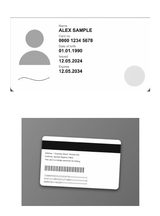
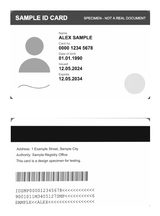
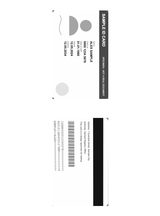
One run per file, in a desktop browser (Chromium). The test files were made for the test; your own photo or scan can come out differently. We measured the downloaded PDF, not a printout or the Print button. A script dragged the corners.
How we tested, the raw data, and 2 other ID card tools on the same scans →
Both sides on one sheet, at the card’s real size
The standard demand — from banks, HR departments, telecom counters, visa agents — is a single A4 page carrying both sides of an identity card. The layout here does exactly that: the first photo takes the front slot, the second the back, stacked one above the other on the sheet, each placed in an ID-1 slot — the 85.60 × 53.98 mm format identity cards physically use. A flat scan cropped to the card, or a photo with its corners dragged onto the card (an upright shot turned first), fills its slot at real size; in our run, photos of the card on a table with their corners not moved did not.
Printing at true size is the point. A photocopied card is credible because it is card-sized; a copy where the card fills half the page is routinely rejected. The layout does the size arithmetic, so once each side is cut to the card, the print comes out matching the plastic in your wallet.
From two photos to one clean copy
Photograph each side flat. On photos with a clear card edge, the corners are detected automatically — check the result in the editor and adjust the four corners by hand if needed, especially on patterned backgrounds. Cards respond to the same perspective correction as pages. The scan filter then evens the lighting on both shots so the two sides print with matching background instead of one gray and one white.
The order rule is simple and worth knowing: first image front, second image back. Swap them in the page list if they arrived in the wrong order. That is all it takes to scan an ID card online: two photos in, one ID card copy out, with both sides on a single page.
Printing without breaking the scale
One printer setting undoes the whole layout: scaling. Print dialogs default to “fit to page”, which enlarges the content and quietly makes both card images oversized. Set the scale to 100% — “actual size” — and the two frames land at 85.60 × 53.98 mm as designed.
After printing, the self-check is immediate: lay the card on its printed image. Matching outlines mean the copy is to scale; a visible border of paper around the plastic means the dialog scaled it, not the layout.
Treat every copy of an ID as sensitive
An image of an identity card is exactly the material caution exists for, which is why this layout runs in the browser: the card photos are processed on your device and are not uploaded to LensUp. What you export is under your control — and worth controlling. Share the copy only through the channel that asked for it, delete leftover exports from the downloads folder, and clear shared or public machines after printing.
If the requesting organization allows it, a dated note on the copy stating its purpose is a sensible habit — it makes the copy harder to reuse anywhere else. Whether that is acceptable is the requester’s call, not the tool’s.
Front and back of an ID: what offices usually ask for
Check whether the requesting form needs both sides together or separate images before you start. For a single-page copy, add the front and back, keep both sides legible and export one A4 page. Follow the form's own file type and size requirements.
Making an Aadhaar copy?
For an Aadhaar copy, use the “Aadhaar card front and back on one page” card in the related links below.
FAQ
How do I copy both sides of an ID onto one page?
Add the front and back photos, pick the ID-card layout, and export — they are placed together on one A4 sheet. On photos with a clear card edge, the corners are detected automatically; check them and adjust by hand if needed.
Which cards does it work for?
Any card — national ID (e.g. KTP / Aadhaar), driver's license, membership card.
Is it free and private?
Yes — free, no sign-up, and everything runs in your browser.
How do I take a picture of an ID front and back for an online form?
Photograph the front and back separately with the whole card visible. Add the front first and the back second, turn an upright card the right way up, then check each photo’s detected corners and adjust them by hand if needed. Choose the ID-card layout and export both sides on one A4 page; check the online form's required file type and size before sending it.
Will the ID copy print at actual card size?
Shots at a steep angle and portrait photos came out at actual size once the corners were on the card. When you print, choose 100% scale (“Actual size”), not “Fit to page”. We measured the downloaded PDF, not a printout or the Print button. A script dragged the corners.
Can I scan both sides of an ID card online for free?
Yes. Add a photo of the front, then a photo of the back, and export: the ID card copy puts both sides on one page. It is free, needs no account, and the photos are processed in your browser.
More free document tools
Aadhaar card front and back on one page
Place both sides of your Aadhaar card on one A4 page.
Scan pictures and documents to PDF, free
Scan to PDF free: an online picture scanner and image scanner that turns phone photos into clean, A4-ready PDFs. Crop, straighten, merge pages — no upload.
Straighten a photo into a flat scan
Corners are proposed automatically when document edges are clear. Check them and adjust by hand if needed. Free, in-browser.
Compress a PDF toward 200 KB, 500 KB or another limit
Compress a PDF or document image toward 200 KB, 500 KB or a custom limit in your browser. PDF pages are rasterized; extreme targets may remain larger.