Document guide
How to flatten a PDF for free (no Acrobat)
To flatten a PDF without Acrobat, open it in a tool that renders every page to an image and exports a new PDF. In LensUp, PDF to scanned PDF does that on your device: form fields, comments, and selectable text are baked into page images and can no longer be edited as fields.
Steps
- Open PDF to scanned PDF
Open Convert PDF to scanned PDF and choose your file.
- Choose Color
Scanned look is preselected (grain and a slight tilt). For a clean flat copy of a form or a commented file, choose Color — still image pages, without the scanner styling.
- Know what becomes an image
Every page is rasterized. Form fields, annotations, links, and selectable text are not preserved as live objects.
- Set paper size
In Export options pick Letter or A4 to match your workflow, or Original to keep page geometry.
- Export the flat PDF
Export and open the result: fields no longer fill in; you see a visual copy only.
What “flatten a PDF” means here
People say “flatten” when they want form fields, comments, or signature widgets merged into the page so recipients cannot tweak them — or so a picky portal accepts an “image PDF.” There is no separate layer-preserving flatten switch in LensUp; rasterizing each page is the mechanism. Adobe describes flattening as combining annotations, form fields, and checkboxes into a single layer so they can no longer be edited.
That matches how a flatbed scan behaves: what you see is pixels. For a filled form or a commented file, open PDF to scanned PDF and choose the Color effect: you get a clean flat copy without scanner styling. Turning each page into a JPG and rebuilding a PDF from those images is a different job, covered in making an image-only PDF.
Flattening is irreversible for interactivity: keep the fillable original in a safe folder. Label exports clearly, for example application-flat-2026-10.pdf.
Clean flat copy vs scanned look
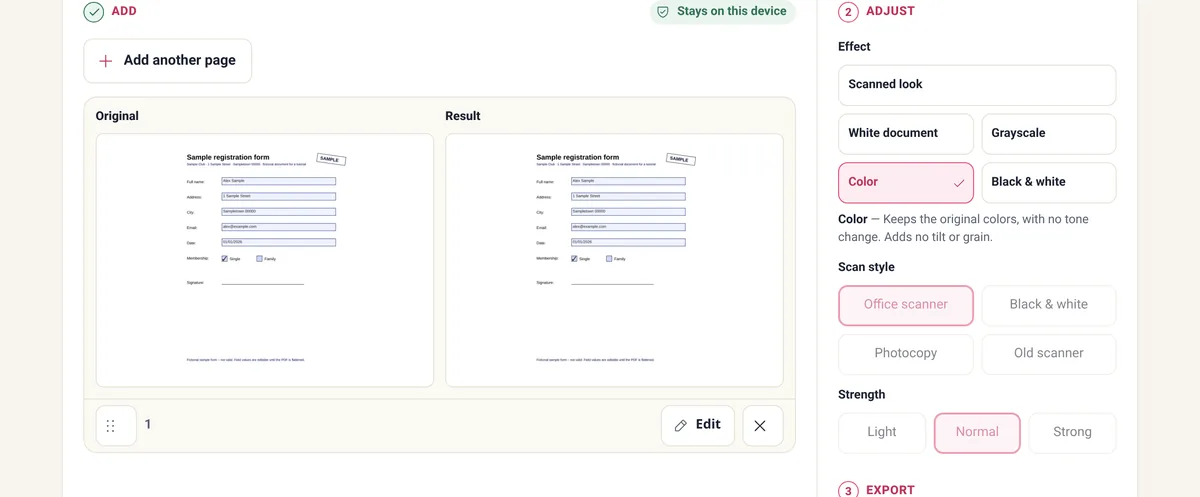
Scanned look adds warm paper, grain, and a tiny tilt — useful when a portal expects something that “looks scanned.” Color still turns pages into images but without that styling, which is the better choice when you only need fields and comments locked.
Black & white under scan styles pushes a harsher scanner look. Compare the preview at a readable zoom before you export. None of these effects signs, dates, or certifies a document.
Acrobat has other routes: its print dialog can include entered form data and comments through the Comments & Forms setting “Document and Markups,” and Acrobat Pro has its own flattener. LensUp’s approach is full page rasterization — simpler, and heavier. Say so if a client expects Acrobat-style flatten.
What you lose — and when that is fine
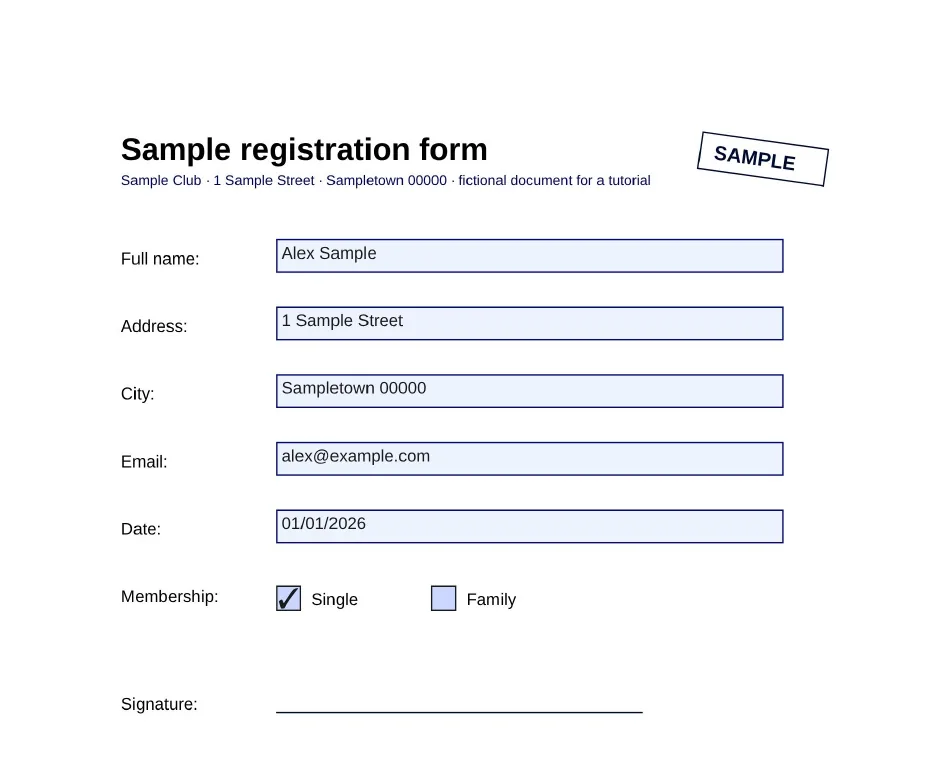
After export, text is not selectable or searchable, links do not work, and filled fields are just ink on the page image. File size usually grows versus a compact text PDF.
That is acceptable for “submit a locked visual copy,” printing, or archiving a filled form as evidence of how it looked. Keep the original digital PDF if you still need to edit fields or search text. Related reading: Word to scanned PDF and Acrobat scanned-PDF workflows.
For a “looks scanned” deliverable, keep Scanned look; for a neutral lock of fields, prefer Color. Both are flat image PDFs afterward.
Size limits after flattening
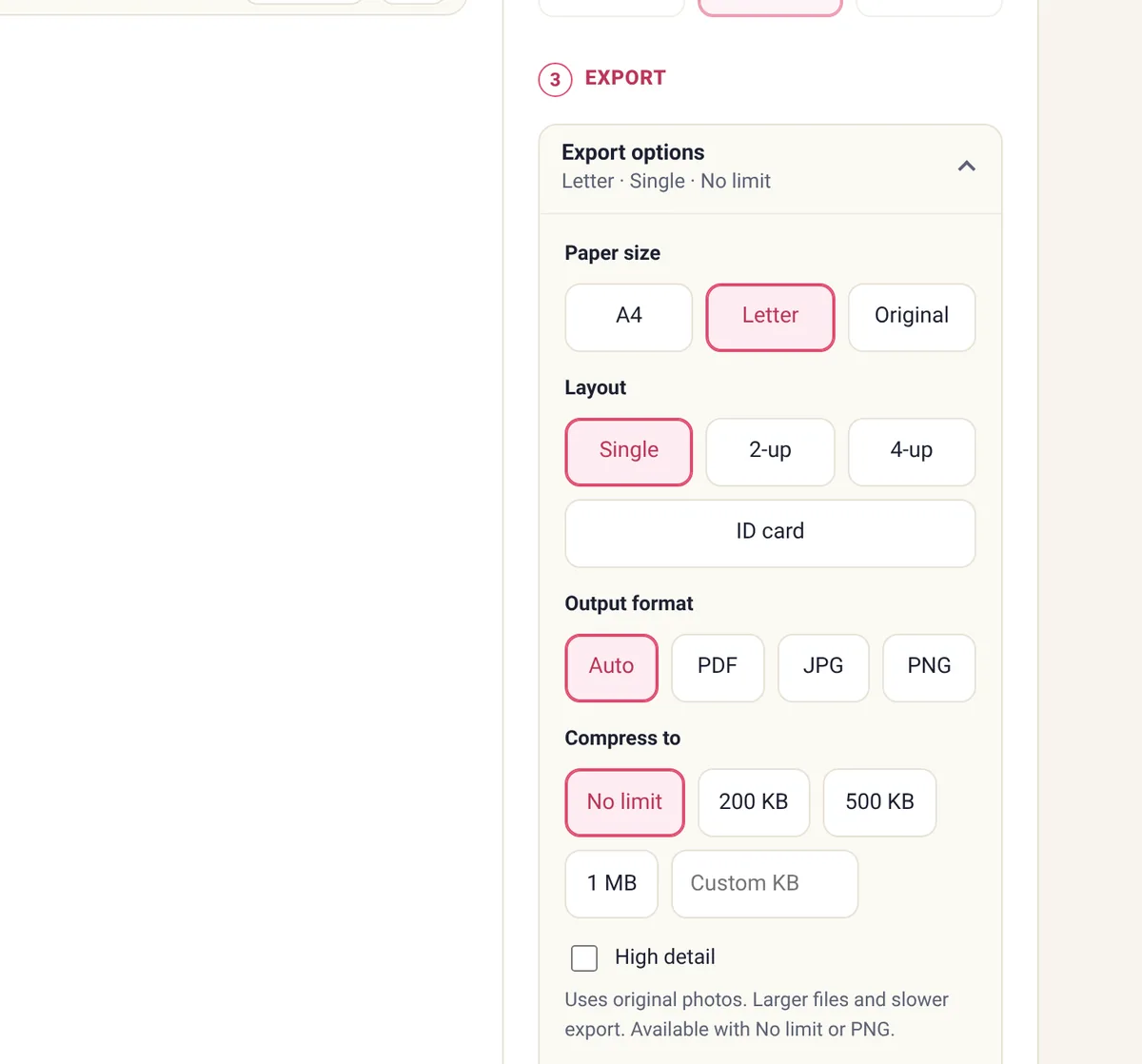
Image pages are heavier. If a portal caps uploads, set a size target in Export options (200 KB, 500 KB, 1 MB) or run the file through Compress PDF afterward. Compression also rasterizes; starting from an already flat file mainly recompresses the images.
Privacy and honesty
Rendering and export run in your browser — the PDF is not uploaded. Flattening changes appearance and interactivity only. It does not prove a document was printed, signed, or scanned from paper, and it does not replace a required ink signature.
Frequently asked questions
How do I flatten a PDF for free?
Open LensUp’s PDF to scanned PDF tool, choose the Color effect, and export. Form fields and comments become part of the page image. No Acrobat, no sign-up.
What does flatten a PDF mean?
Usually: merge fields and layers into the page so they are no longer editable objects. Here that is done by turning each page into an image.
Will text stay selectable?
No. Pages become images, like a real scan.
Is this the same as “image-only PDF”?
No. This guide flattens a filled form or a commented PDF with PDF to scanned PDF and the Color effect. The image-only guide covers turning pages into JPGs and rebuilding a PDF from them — a different job.
Are files uploaded?
No — processing stays on your device.
Flatten a filled form or a commented PDF into a clean, flat copy in your browser.
Flatten PDF