Document guide
Clean a scanned PDF: shadows, marks and readable text
A clean scan starts with readable source pixels. Use document cleanup for gray paper, shadow removal for uneven lighting, and manual covering for isolated marks. These are different tasks: adding a scanned look makes a clean PDF look like a scan, rather than cleaning it.
Steps
- Keep the original
Make a copy. Check whether you need selectable text, working links, forms or a digital signature; rendering pages to images will not preserve those features.
- Choose the actual problem
Open the scanner for a PDF or photograph. Try White document for paper cleanup, or use the separate shadow-removal tool for uneven illumination. Use Grayscale or Black & white only after checking faint writing.
- Check and export
Inspect small text, pencil strokes, stamps and table lines at a useful zoom. Export a copy, reopen it and compare the page count and important details with the original.
Reproduce this cleanup example
Original synthetic source
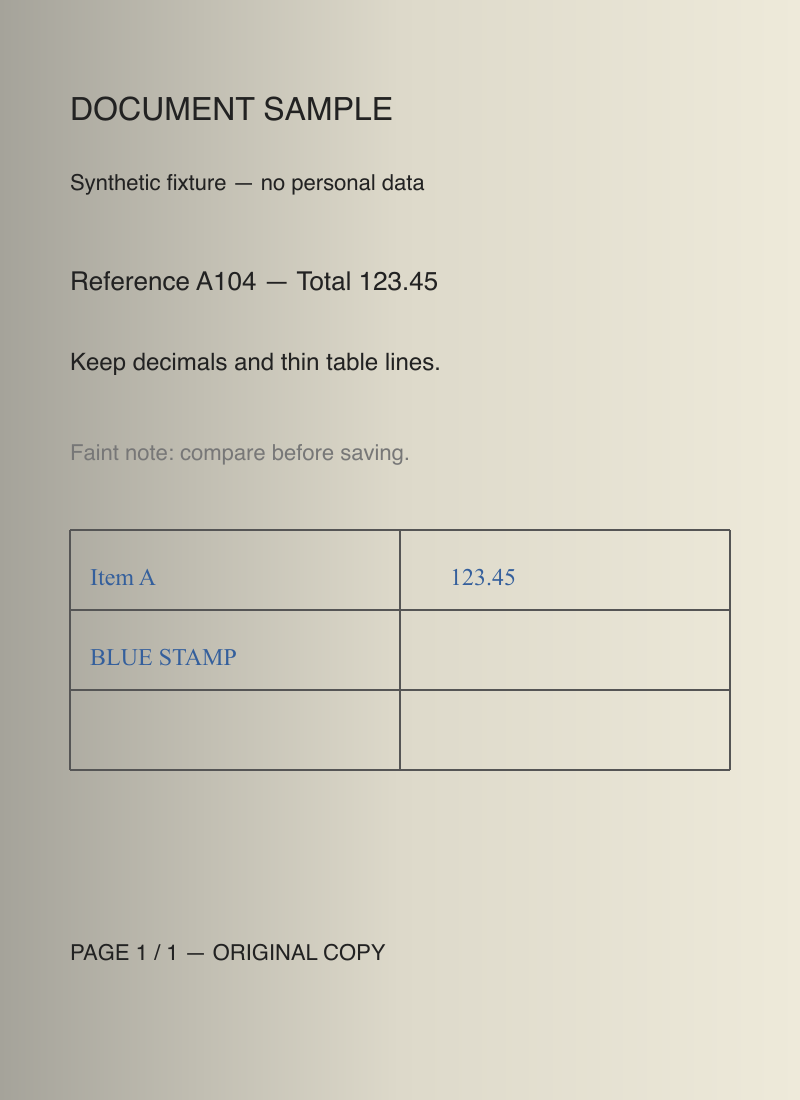
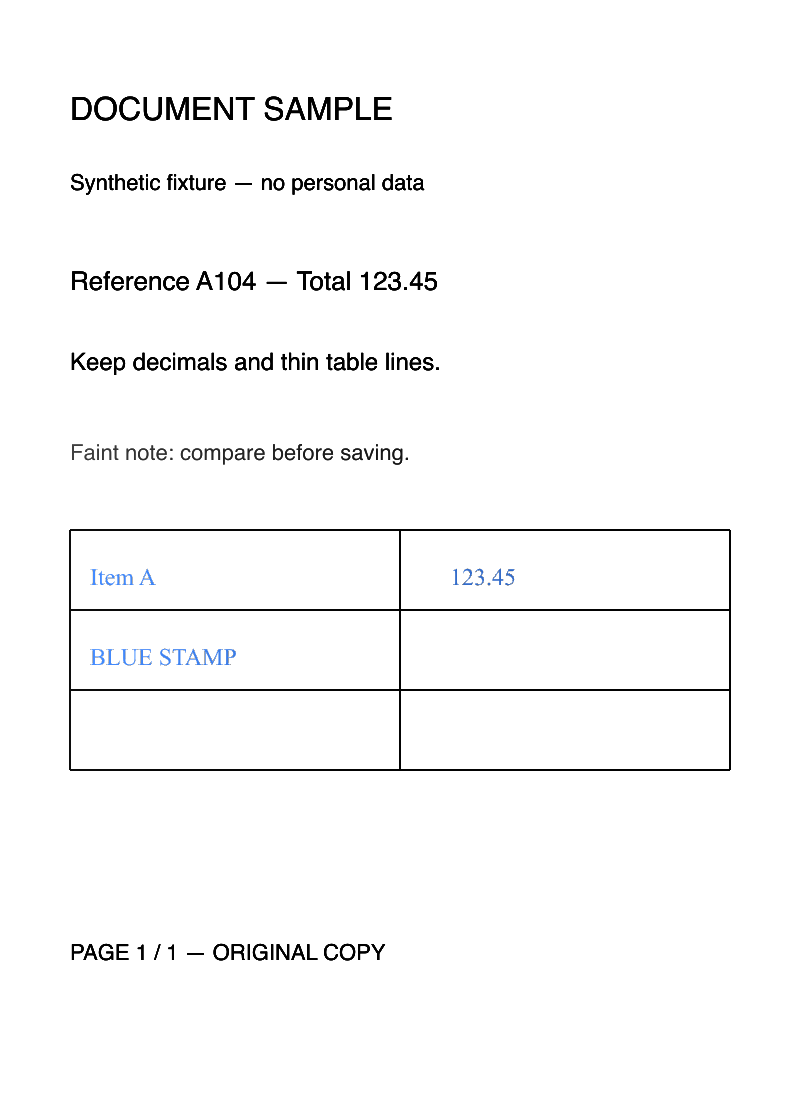
Actual White document export
Choosing a PDF scan cleaner for marks and spots
A gray background or a broad lighting gradient may improve with a document effect. The result depends on the source. A dirt spot touching a character is not reliably separable from that character. Automatic cleanup can remove a full stop or a thin line along with the spot.
For a single unwanted mark, open PDF White Out and cover only that region. Keep as is only hides the underlying content. Remove it creates image pages with the covered content removed and loses selectable text. Keep the original for recovery.
When sharpening is the wrong answer
Blur means neighboring pixels have already been mixed; increasing contrast cannot recreate missing letter shapes. If the original paper is available, take a better-lit, higher-resolution photo instead.
Adobe documents a separate Enhance scanned file workflow in Scan & OCR. Its optional recognition adds searchable text. That is a third-party workflow, not a feature promised by this LensUp cleanup page.
To make a scan look like the original, aim for readable paper and faithful marks, not an exact reconstruction of missing pixels. For a white background, compare White document with Color and check the whole page before saving. The sample below can be downloaded and rerun in the linked scanner.